Event, Scheduled, and Immediate tasks let you automate device actions in different ways. Event tasks run when a specified device event occurs, Scheduled tasks run at a set time or on a recurring schedule, and Immediate tasks run bulk device actions, such as rebooting devices, right after submission.
Before you set up a task, please check the reminders below:
● Event task is only available for Android devices.
● Email delivery of the notification may be delayed depending on your Email service provider.
● A higher frequency to check the device status will consume more power and data on the device.
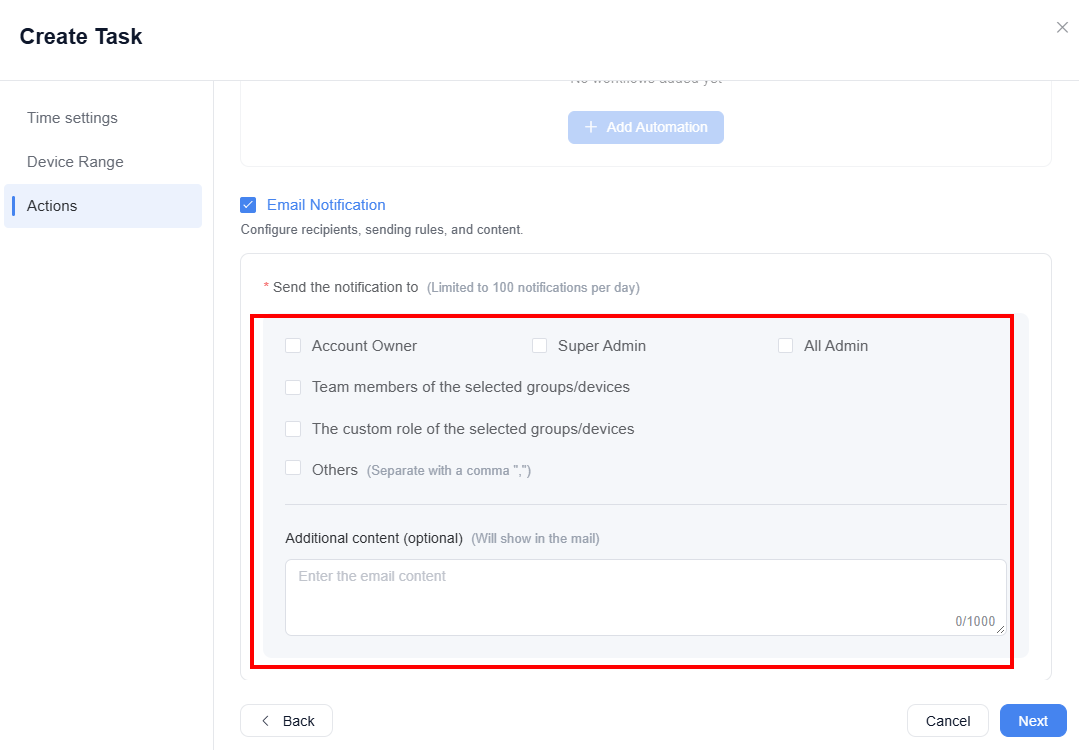
● The notification frequency can be set to one notification per day or one notification for every event.
● The limitation of the notification is 100 per day.
● The notification receiver can be a non-member of the admin console.
Please refer to the following steps to set up a task:
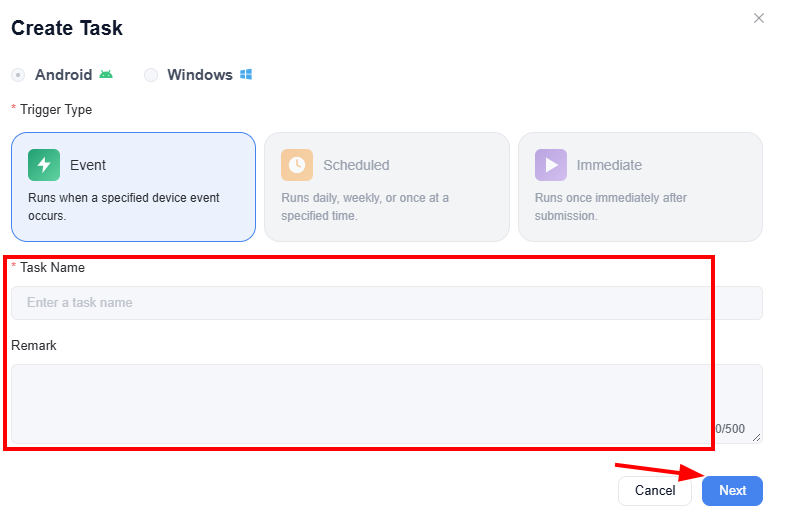
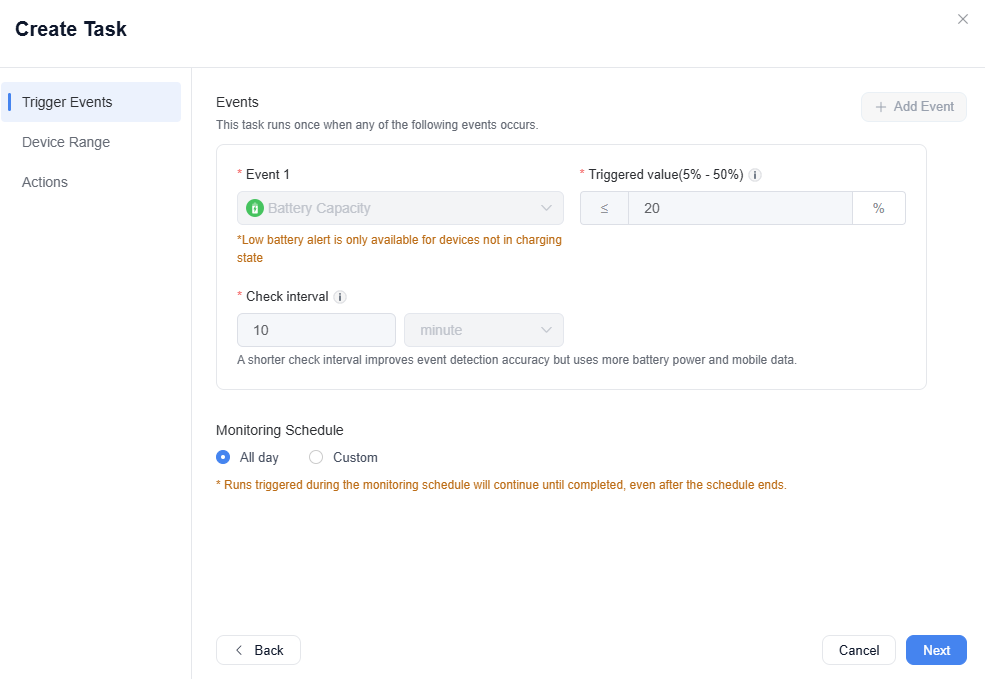
1. To create an event task from the templates, you can click Settings under most of the status graphics. Then, enter the task name and remark to create a task related to the graphic, for example:

2. Or, you can click Workbench > Switch to Task & Automation.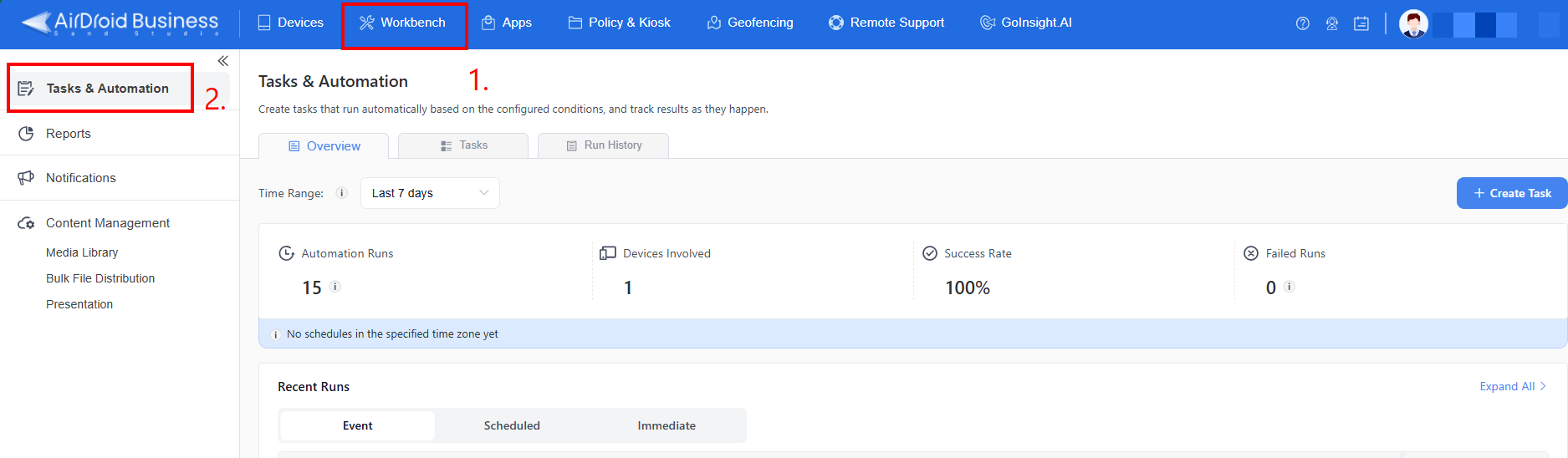
3. Click +Create Task > choose your device type > select the trigger type. Then, enter the Task Name and Remark to align with your demands.
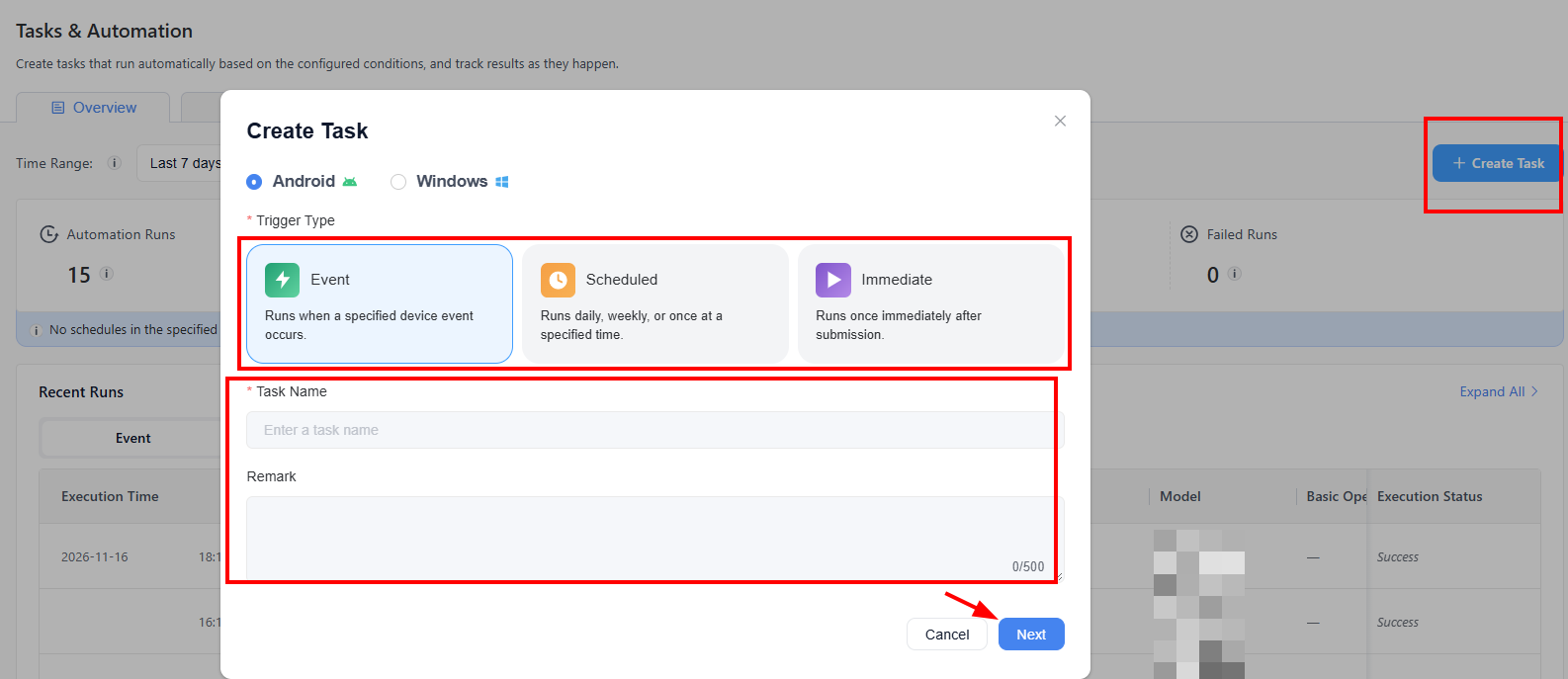
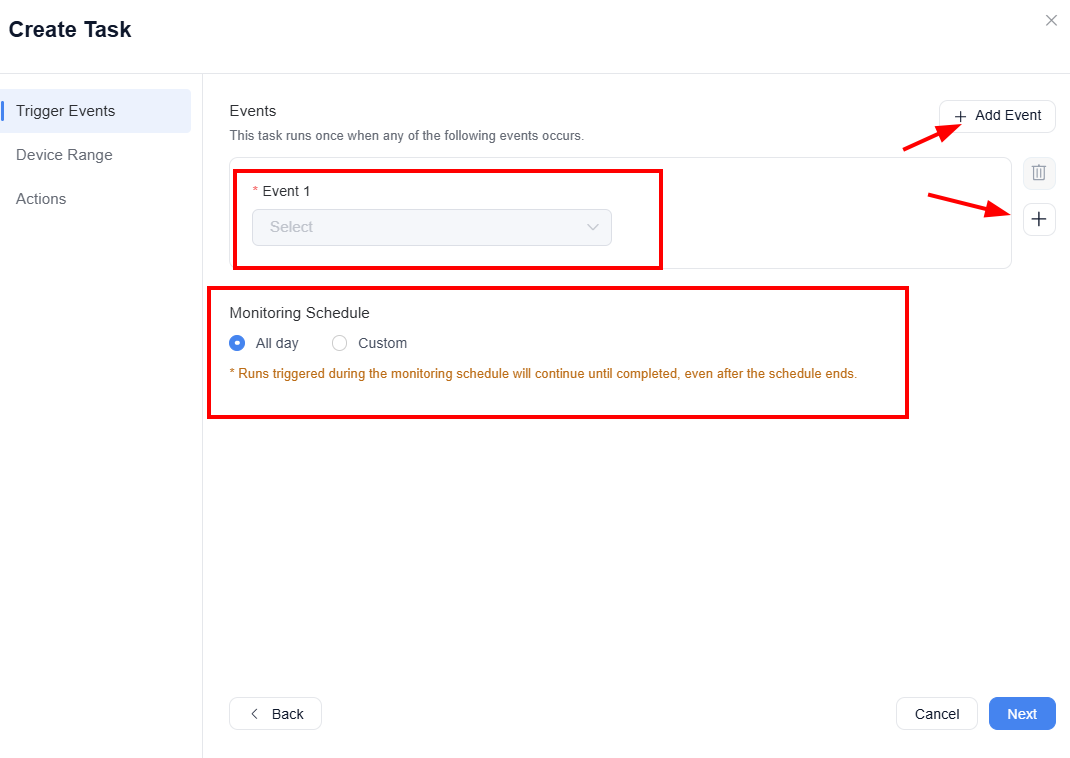
4. If you selected an Event task, you will need to set up to 5 events to trigger this task. Then, you will need to set a specific Monitoring Schedule.
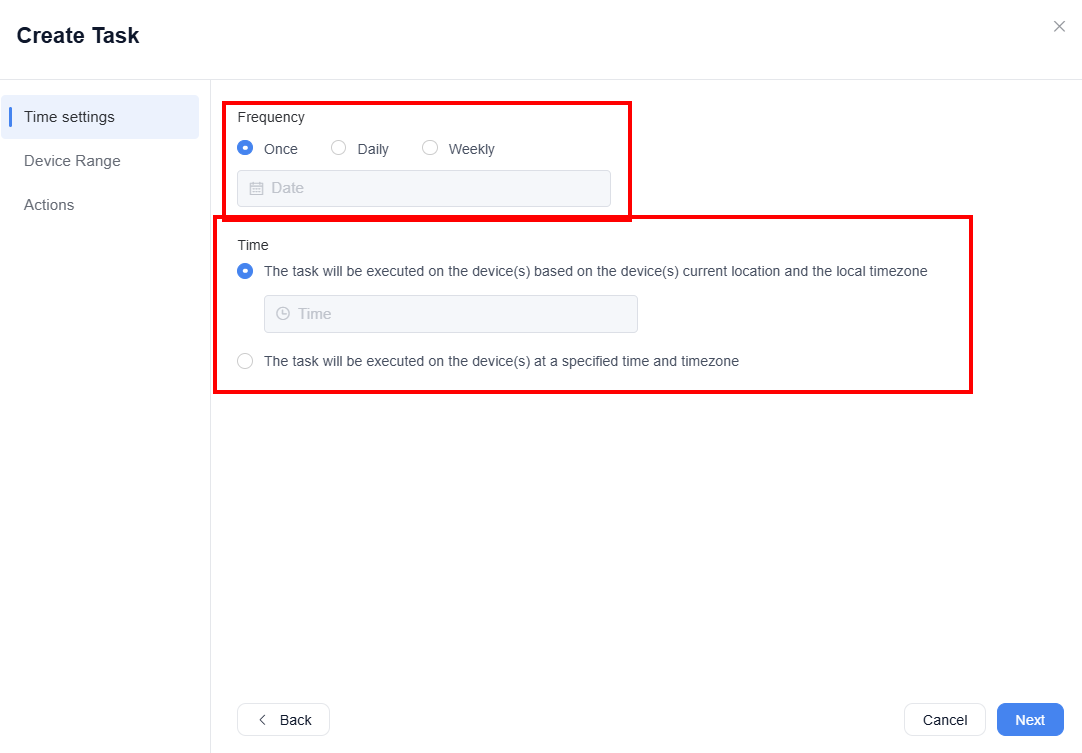
If you selected a Scheduled task, you will need to set the Frequency and Time to execute this task.
If you selected an Immediate task, you only need to set the Device Range and Actions.
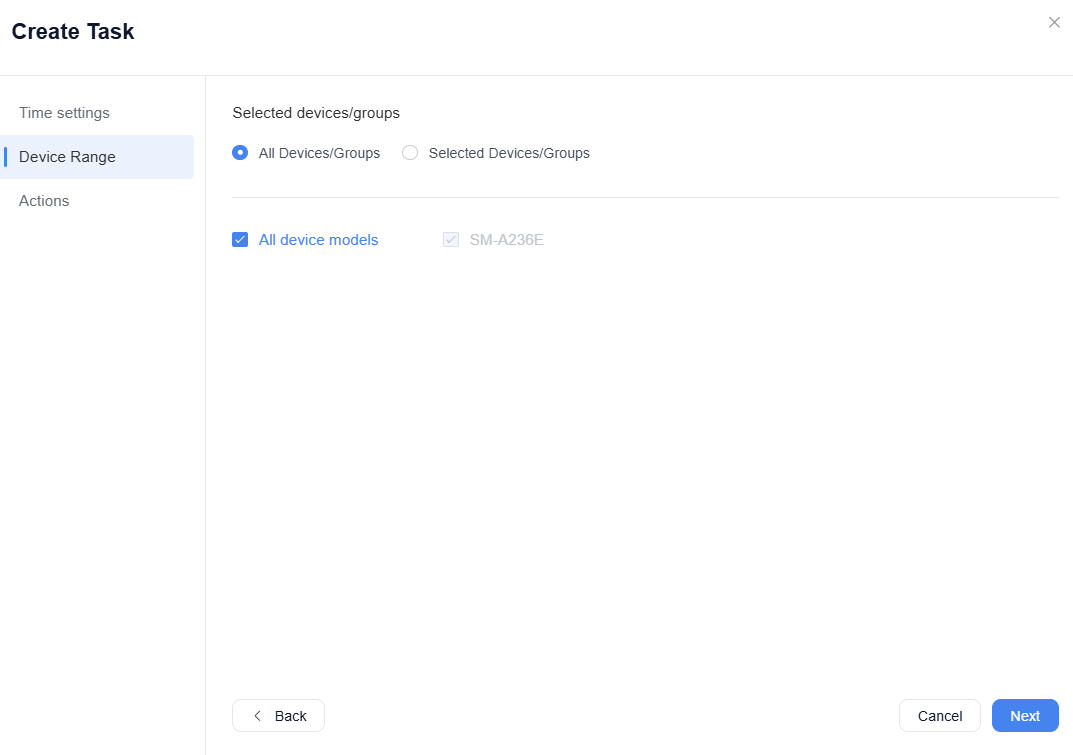
5. For Device Range, you will need to set specific devices, groups, or models.
6. For Actions, you can select Basic Operations, Workflow, Email Notification:
- You can set Device Actions when the task is triggered. The available actions vary depending on the task, device type and event. If you need to know more details, please refer to this article.
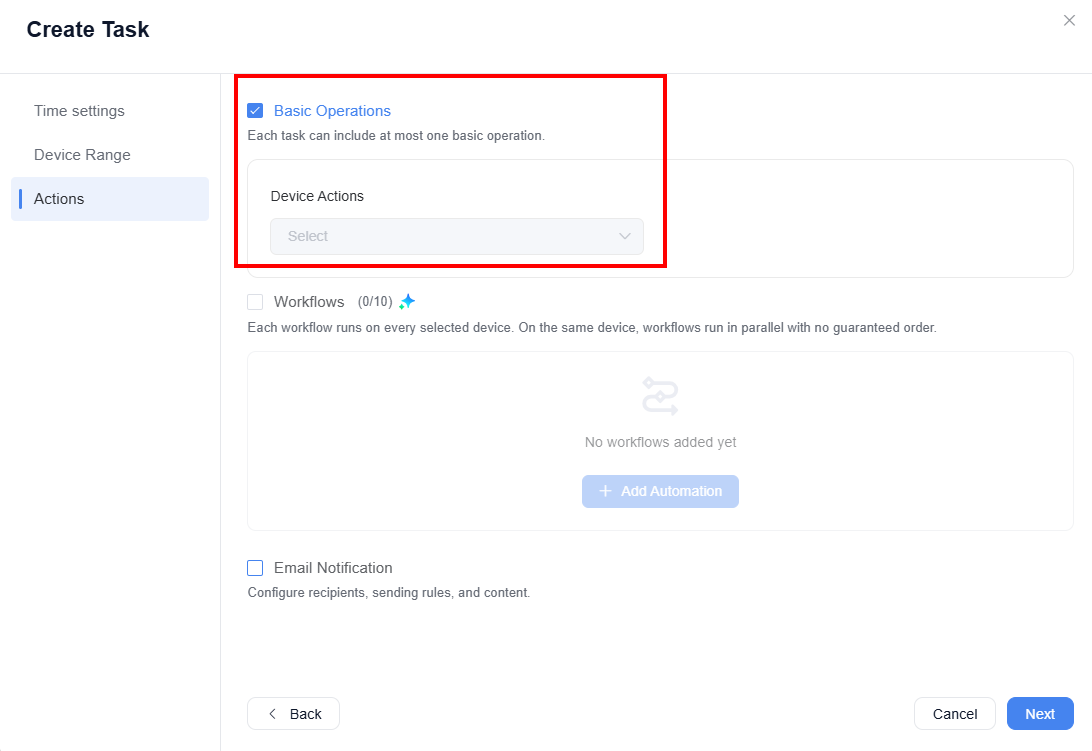
- You can choose GoInsight.AI workflows if you like some more complicated actions to be taken. This option is only available for Android devices.
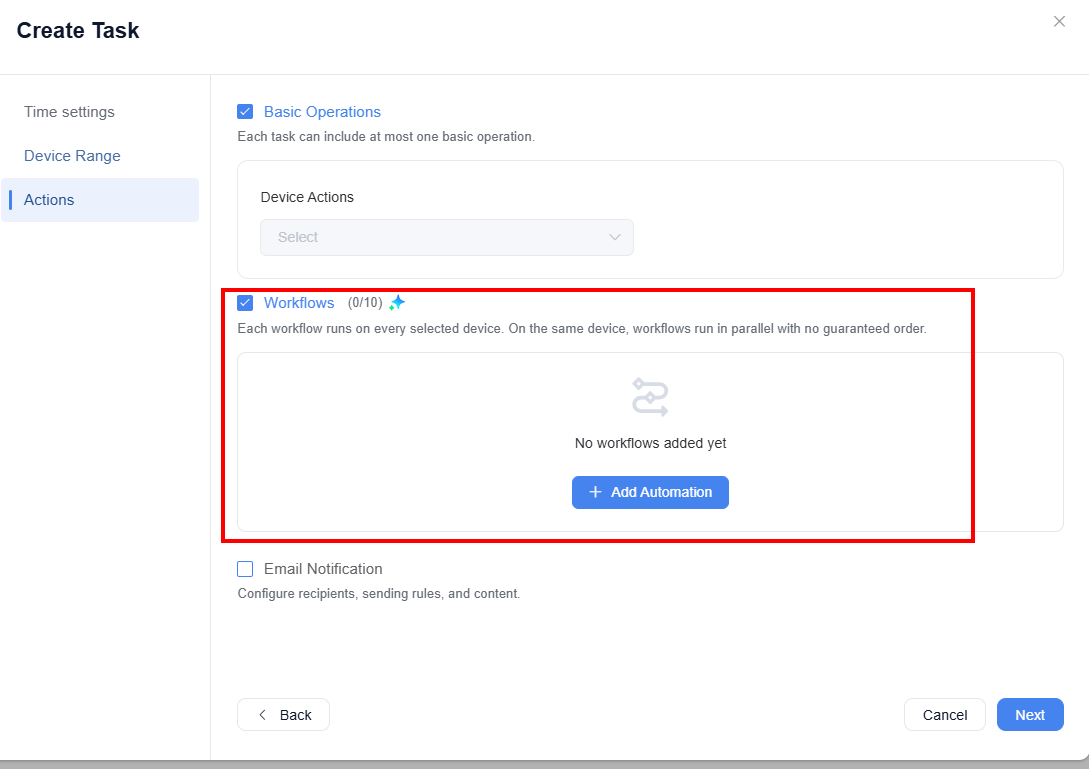
- You can choose to send an email notification when the task is triggered. This option is not available for the Immediate task.
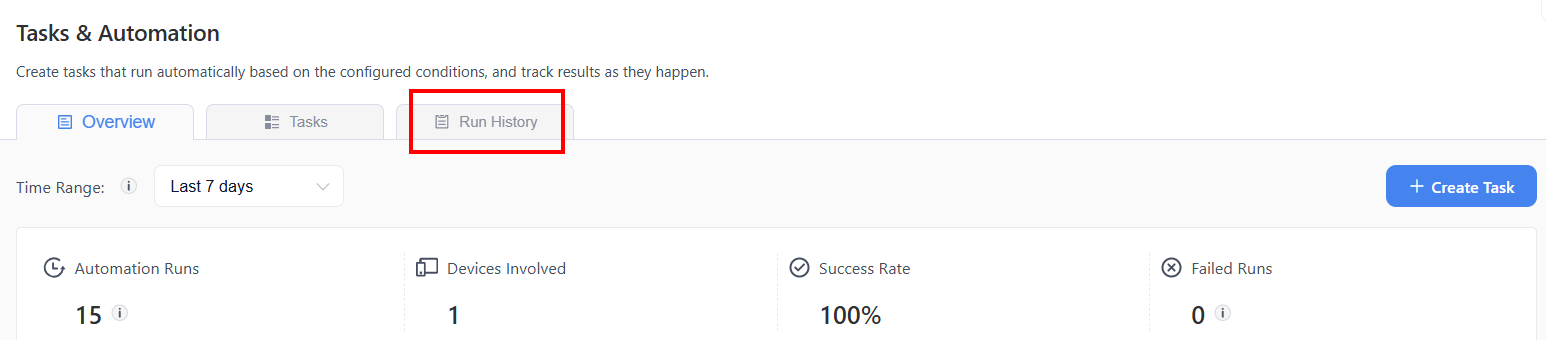
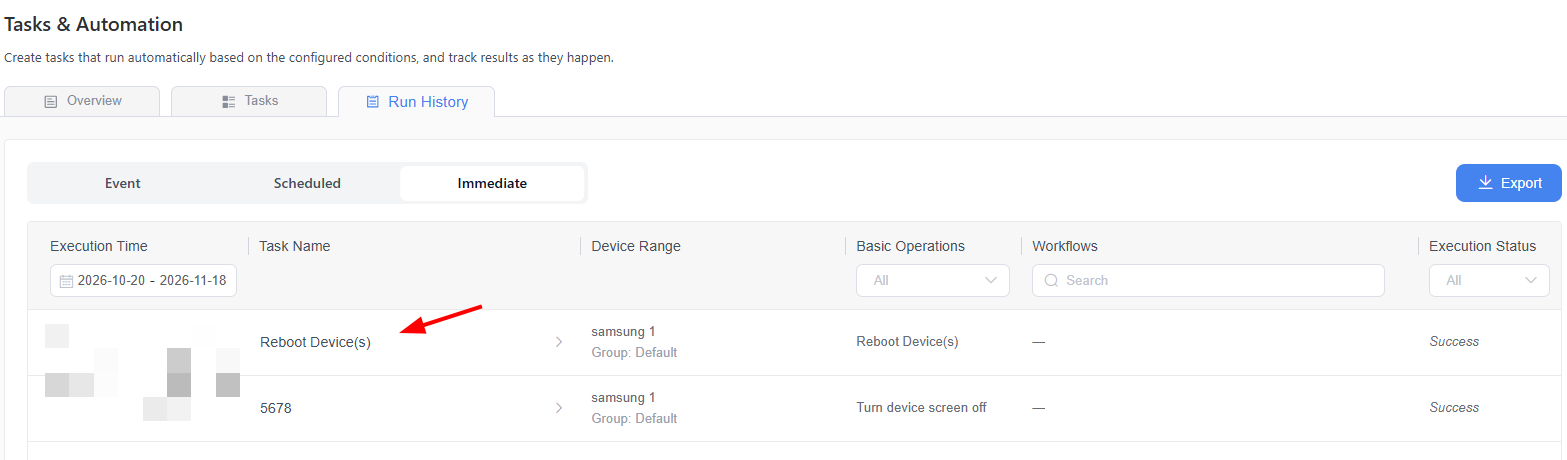
7. After setting up a task, you can check the task log by clicking Run History.
Then, you can select the task type to view all task executions or filter specific columns. Use the horizontal scroll bar at the bottom of the table to view more columns.
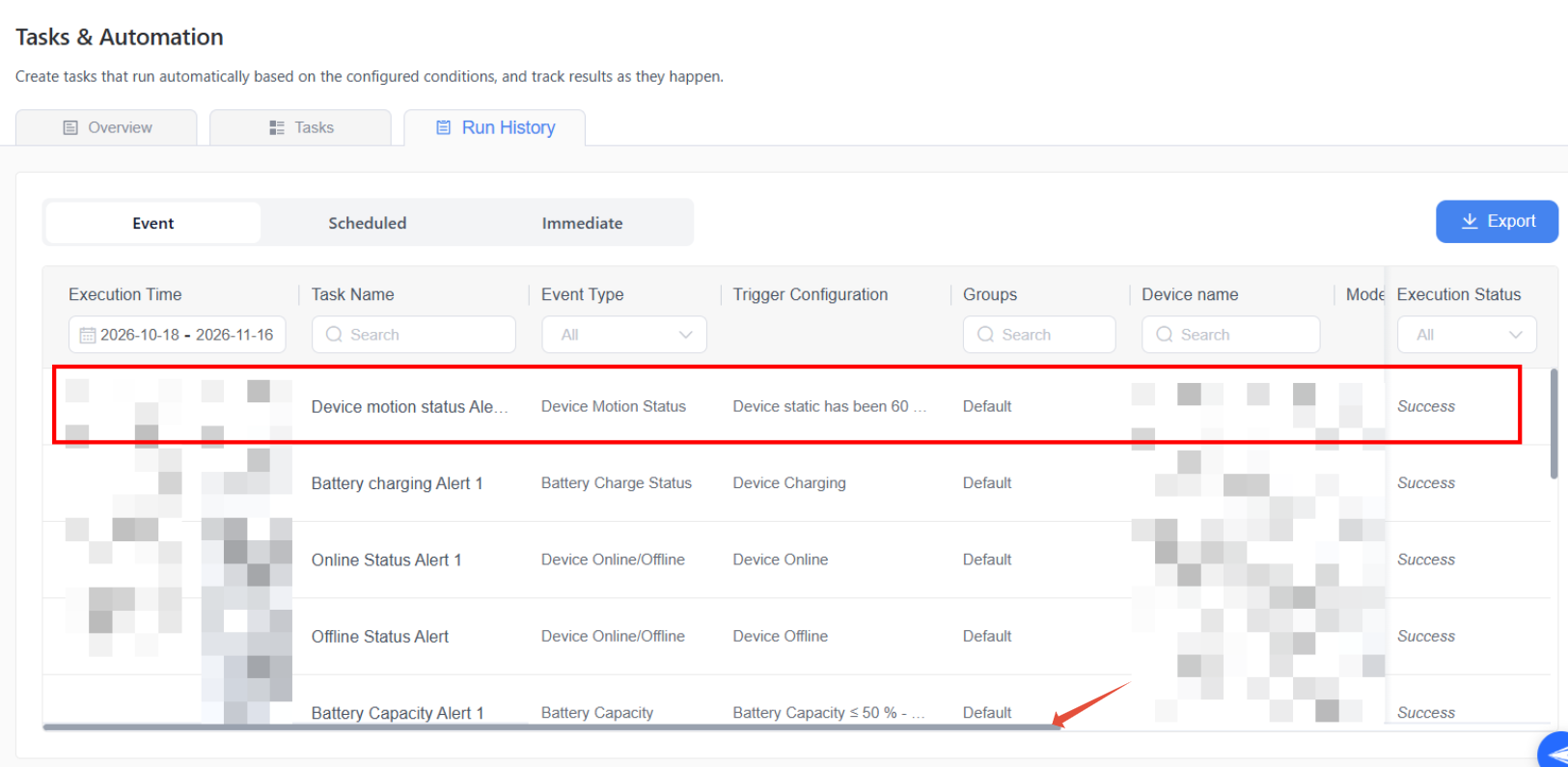
For Immediate task, tap the task name to check the specific task log.

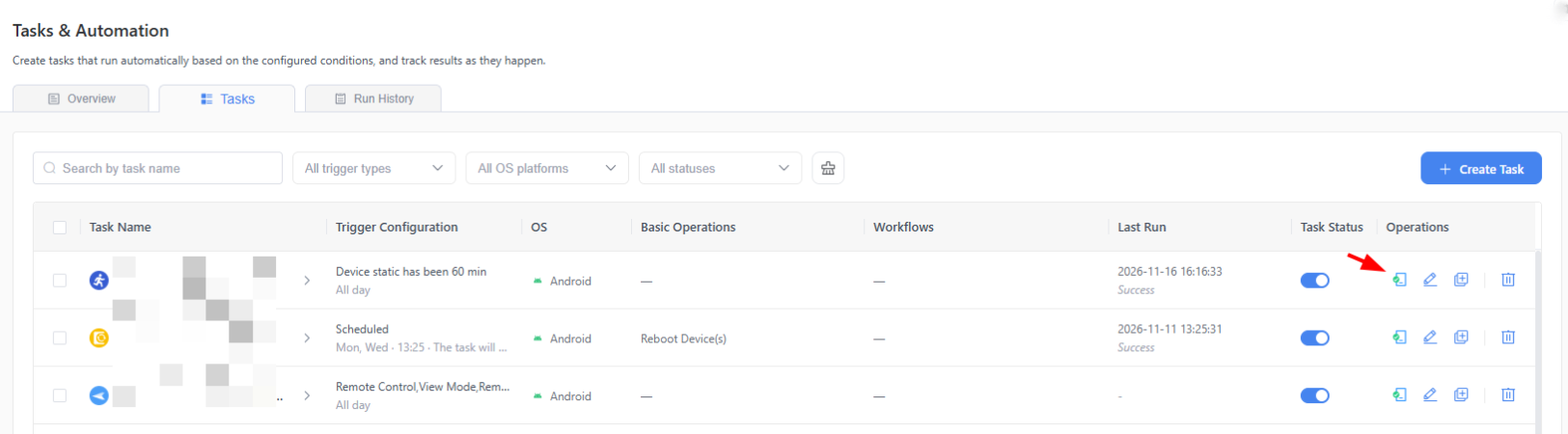
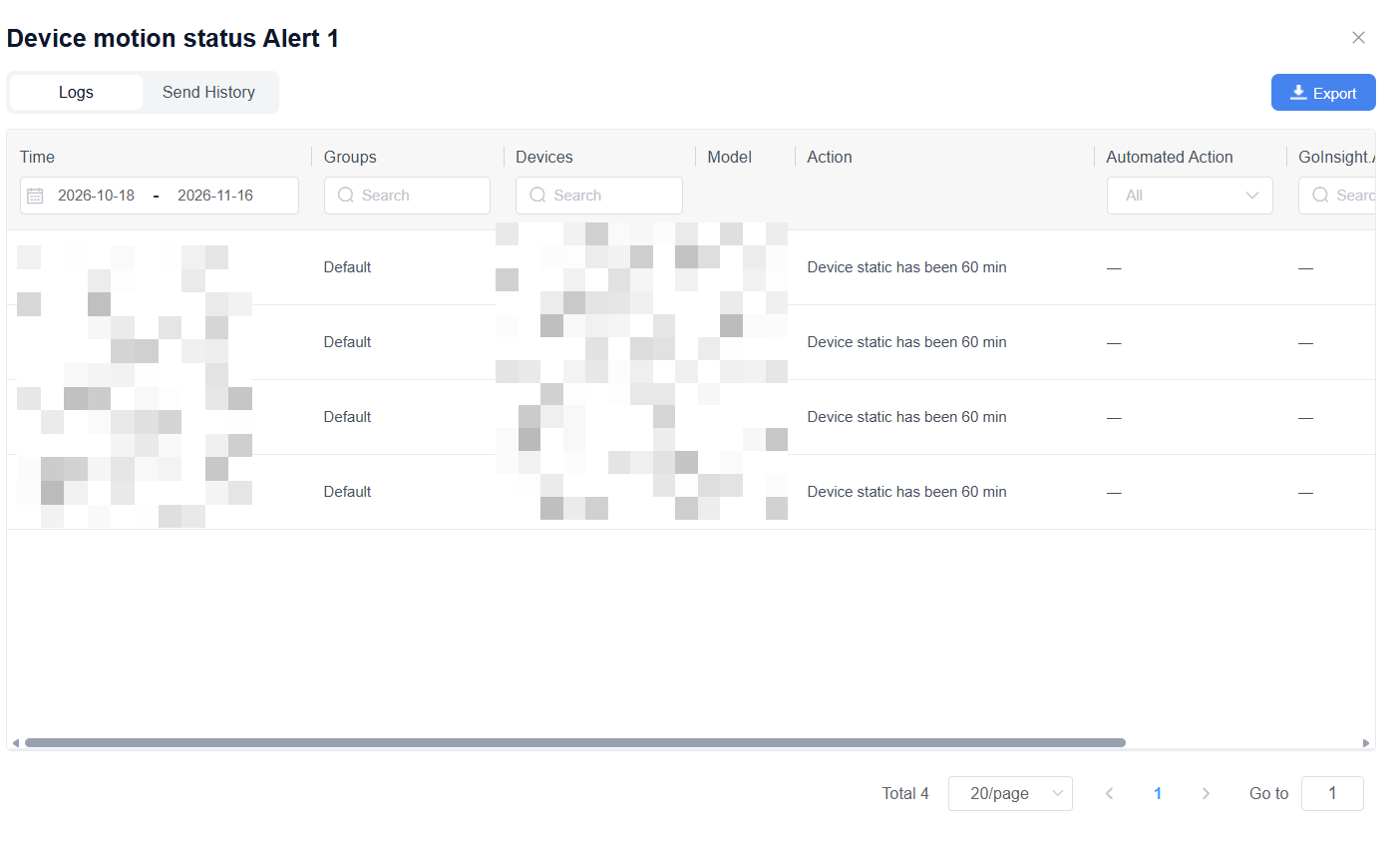
8. You can also click on Tasks > the details icon to check the log of a single task or export the log.
Note: Task execution may be affected by runtime conditions such as device status and network connectivity. As a result, actual execution results may differ from expectations, and execution irregularities may occasionally occur.We recommend that you regularly review the relevant execution logs and make adjustments as necessary based on the actual circumstances.
Was this article helpful?
That’s Great!
Thank you for your feedback
Sorry! We couldn't be helpful
Thank you for your feedback
Feedback sent
We appreciate your effort and will try to fix the article