AirDroid Business supports remotely unlocking Android devices protected by the PIN screen lock during Remote Control. This feature is ideal for managing unattended devices whenever a screen unlock is required.
Requirements:
- Android 12 or above with a 4-16-digit PIN screen lock
- Biz Daemon 1.5.4.0 or above
- AirDroid Business for Windows 1.3.4.0 or above
- AirDroid Business for Mac 1.2.8.0 or above
- AirDroid Business mobile controller apps are currently NOT supported
Note:
- The unlock experience may vary depending on different device models. If you have any questions, please contact us.
- After restarting a PIN-locked device, please unlock it once before using this feature.
- Ensure the PIN is entered correctly to prevent device lockout after multiple failed attempts. If you set the Maximum number of failed attempts in the Policy config, it will trigger a factory reset.
To use this feature, please refer to the instructions below:
1. Ensure that a 4–16-digit PIN screen lock is set on the Android device.
2. Start a Remote Control session using the Admin Console or Windows/Mac desktop client.
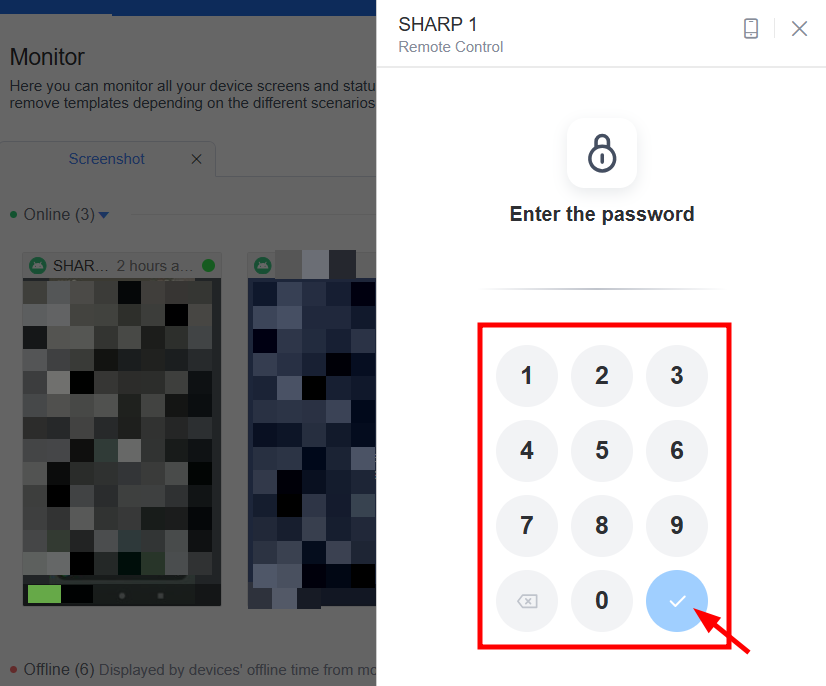
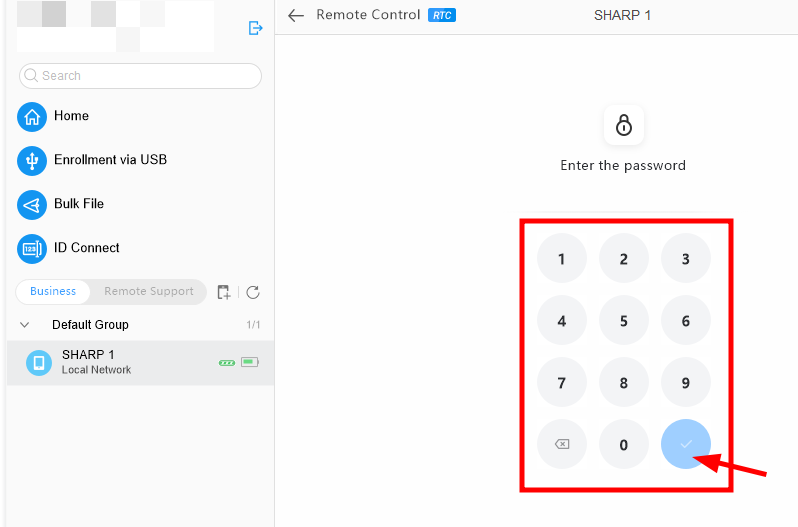
3. Enter the PIN code and select the checkmark icon to unlock the device.
Admin Console:
Windows/Mac desktop client:
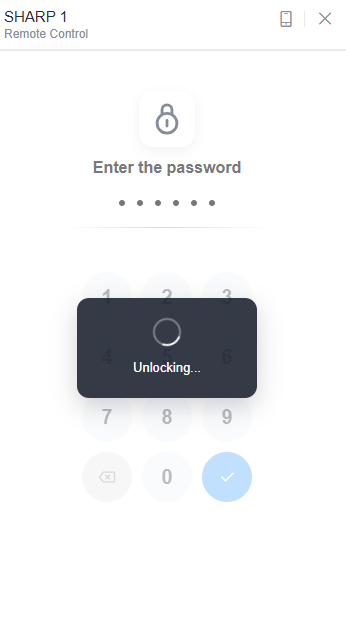
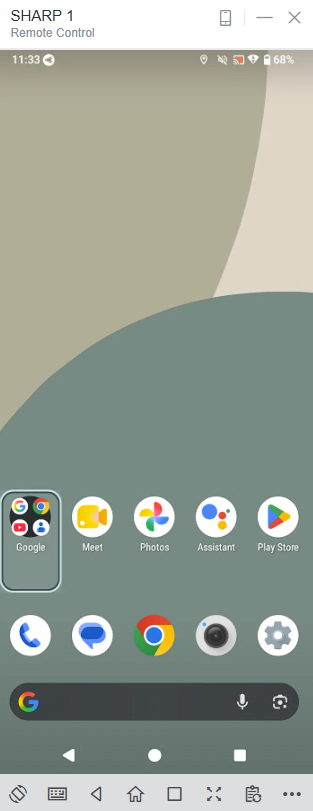
After submitting the PIN, the device will be unlocked.
 |  |
Was this article helpful?
That’s Great!
Thank you for your feedback
Sorry! We couldn't be helpful
Thank you for your feedback
Feedback sent
We appreciate your effort and will try to fix the article